Passkeys Explained: The Password Replacement You’ll Actually Notice
Passkeys let you sign in with Face ID, fingerprint, or a device PIN—no memorized passwords, fewer phishing traps, and smoother logins across apps and sites.
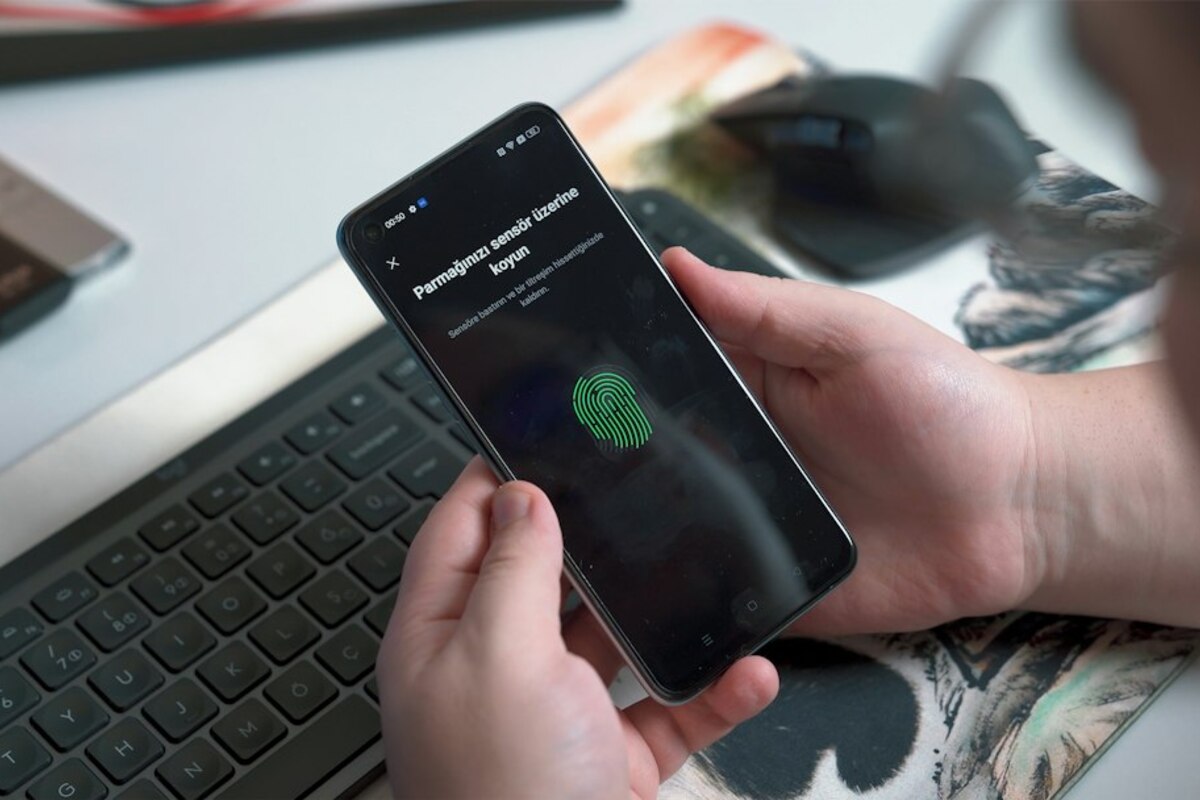
- Passkeys replace passwords with device-based sign-ins (Face ID, fingerprint, PIN) that are far harder to phish.
- They work through a shared standard (FIDO/WebAuthn) used by major platforms and many popular websites.
- You can use passkeys safely across devices—with a few practical habits to avoid lockouts and confusion.
Why passkeys suddenly show up everywhere
You open a shopping app and it offers “Sign in with passkey.” Your email service nudges you to “Create a passkey for faster login.” Even your bank might mention it in a security update. This isn’t a random trend—it’s a response to a problem most people feel every week: passwords are annoying to manage and easy to steal.
Think about how many times you’ve done one of these:
- Forgot a password and had to reset it—again.
- Reused a password because you were in a hurry.
- Received a “Was this you?” login alert after typing credentials into a sketchy-looking page.
Passkeys aim to remove the weakest link in that chain: the shared secret you type. With a passkey, you usually sign in the same way you unlock your phone—Face ID, fingerprint, or a device PIN. The “credential” becomes something your device proves on your behalf, rather than something you hand over to a website.
A helpful analogy: a password is like telling someone the code to your apartment door. A passkey is more like showing a doorman your ID and having them recognize you—no code gets spoken aloud, and a fake doorman can’t trick you into revealing it.

So what is a passkey, in plain English?
A passkey is a modern login method built on public‑key cryptography (don’t worry—you don’t need the math). What matters is the behavior:
- You don’t type a password for that account anymore (or you use it far less).
- Your device confirms it’s you with biometrics (Face ID / Touch ID / fingerprint) or a device PIN.
- The website gets proof you’re the real account holder—without receiving a reusable secret that could be stolen and replayed.
Behind the scenes, a passkey is a pair of keys:
- A private key that stays on your device (or in your device’s secure system). It doesn’t get uploaded as something a site can read.
- A public key stored by the website. It’s safe to store because it can’t be used to log in by itself.
When you sign in, the website sends a one‑time challenge. Your device signs it using the private key, and the website verifies it with the public key. The important everyday takeaway: there’s nothing you can “accidentally type into the wrong site” that would let attackers log in later. That’s why passkeys are often described as “phishing-resistant.”
| Login method | What you do | What can go wrong in real life |
|---|---|---|
| Password | Type a memorized secret | Phishing pages steal it; reuse leads to account takeovers; resets are frequent |
| Password + SMS code | Type password, then a texted code | SIM swap attacks; SMS delays; still phishable if the site is fake |
| Authenticator app (TOTP) | Type password, then a rotating code | Better than SMS, but you can still type the code into a fake site |
| Passkey | Confirm with Face ID/fingerprint/PIN | Device loss/changes can cause confusion if you don’t plan recovery |
One small but important detail: passkeys are designed to be tied to the real website or app. If you land on a look‑alike domain (for example, “paypaI.com” with a capital i), your device won’t happily use a passkey meant for “paypal.com.” That’s one reason people notice fewer “Uh oh, was that page legit?” moments.
A short scenario: Imagine you get a message that says your streaming account is locked and you must “log in now.” With passwords, it’s easy to panic and type the password into whatever link you clicked. With passkeys, the login prompt typically comes from your device and matches the legitimate site—if the link is fake, the passkey prompt often won’t appear or won’t match the account. That speed bump can save you.
Using passkeys day-to-day (and avoiding the common surprises)
Passkeys feel simple when everything is on one device. The real questions begin when life happens: you get a new phone, use a work laptop, borrow a tablet, or travel with only one device.
How you usually create one:
- You go to an account’s security settings.
- You choose “Create passkey.”
- Your device asks for Face ID/fingerprint/PIN.
- From then on, “Sign in with passkey” is available.
How it usually feels when signing in: You tap “Use passkey,” your device prompts you to confirm (Face ID, fingerprint, or device PIN), and you’re in. No copy/paste. No “must include a symbol.” No reset emails.
What about logging in on a different device? There are two common experiences:
- Synced passkeys: Many people keep passkeys in a platform’s credential manager so they appear on other devices you own (for example, your phone and laptop). This is the “it just works” path.
- Using your phone to sign in on a nearby computer: Some sites let you scan a QR code on the computer, then approve the login on your phone. That way, your private key never leaves your phone.
The biggest “gotcha” is recovery. Passwords are recoverable because you can reset them. Passkeys are different: if you lose access to the device(s) holding the passkey and you didn’t set up sync or backup options, you may need to go through the site’s account recovery process (which could mean email verification, support tickets, ID checks, or waiting periods—especially for financial services).
To keep passkeys convenient instead of stressful, a few habits help:
- Keep at least two ways in: Add a second passkey on another device (or keep a strong password as a fallback if the service allows it).
- Update recovery info: Make sure your account email and phone number are current—recovery often relies on them.
- Separate work and personal expectations: A work-managed laptop may not let you sync credentials the way your personal devices do.
No. Face ID/fingerprint is typically how you unlock the passkey on your device. The passkey itself is a cryptographic credential tied to a specific account and website/app.
No. Face ID/fingerprint is typically how you unlock the passkey on your device. The passkey itself is a cryptographic credential tied to a specific account and website/app.
Typically, the site stores only a public key. A thief who steals that public key can’t use it to log in. That’s different from password database leaks, where attackers can try cracked or reused passwords elsewhere.
Typically, the site stores only a public key. A thief who steals that public key can’t use it to log in. That’s different from password database leaks, where attackers can try cracked or reused passwords elsewhere.
You’ll rely on whatever backup path you set up: synced passkeys on another device, an additional passkey on a tablet/laptop, or the service’s account recovery process. Planning one “spare key” is what turns passkeys from cool to truly practical.
You’ll rely on whatever backup path you set up: synced passkeys on another device, an additional passkey on a tablet/laptop, or the service’s account recovery process. Planning one “spare key” is what turns passkeys from cool to truly practical.
A real-life workplace moment: You’re at a coworking space and need to log into a project tool on a shared meeting-room computer. With passwords, you might type it in and hope the browser doesn’t save it. With passkeys, you can often use a QR code flow: the meeting-room computer displays a code, you scan with your phone, confirm with Face ID, and you’re in—without leaving a password behind on a machine you don’t trust.
Another everyday moment: You upgrade your phone. The smoothest experience is when passkeys are synced, so they follow you to the new device after you sign into your account ecosystem. Without sync, you may need to sign into each service the old-fashioned way one last time to add a new passkey.
One more subtle benefit: Passkeys reduce “credential fatigue.” When you’re not constantly inventing passwords, you’re less tempted to reuse them. Even if you still keep a couple of passwords for older sites, passkeys can lower the total number you need to manage.
If you’re curious but cautious, a gentle way to try passkeys is to enable them on a low-stakes account first (like a hobby forum or a secondary shopping account) and practice signing in on two devices. After that, enabling them on email, cloud storage, or finance-related services feels much less intimidating—because you’ve already experienced what the prompts look like and how recovery works.