Passkeys Explained: The New “No-Password” Login That’s Showing Up Everywhere
Passkeys are replacing passwords with Face ID, fingerprints, or a device PIN. Here’s what they are, how they work, and what to do when switching devices.
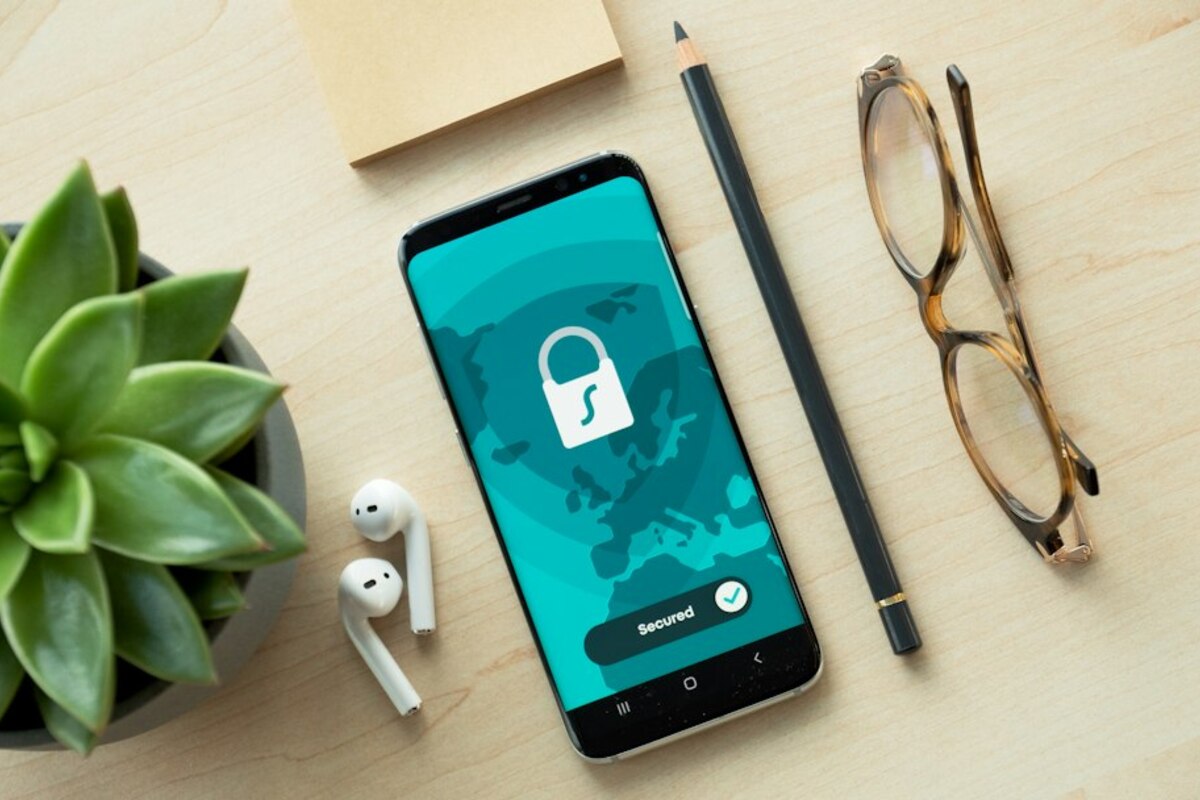
What a passkey feels like (and why it’s different from a password)
Imagine you walk up to your apartment building. With a password, it’s like telling the doorman a secret phrase. If someone overhears it (or tricks you into saying it), they can get in. With a passkey, it’s more like your phone (or laptop) is the key fob: you tap, confirm with Face ID or a fingerprint, and the door opens—without you ever saying a secret out loud.
That’s the everyday shift passkeys are aiming for: instead of you proving you know a string of characters, your device proves it has the right cryptographic key, and you simply unlock the device to approve the sign-in.
You’ll spot passkeys on sign-in screens as options like:
- “Sign in with passkey”
- “Use Face ID / Touch ID”
- “Use your device” or “Use a security key”
They’re becoming common across major services because they reduce two huge pain points at the same time:
- Password fatigue (creating, remembering, resetting)
- Phishing and account takeovers (handing a password to the wrong site, reusing passwords, data breaches)
Unlike “a better password,” a passkey is a different kind of credential. It’s built on public-key cryptography (the same math behind secure web connections), packaged in a way that feels simple: unlock your device, you’re in.

How passkeys work—without the math headache
Here’s the simplest mental model: a passkey is a matched pair of keys—like a unique stamp and its matching ink pad.
- One part stays on your device (private key). It never leaves.
- The other part is stored by the website/app (public key). By itself it’s not useful to attackers.
When you sign in, the website sends a challenge (a one-time “prove it” request). Your device uses the private key to answer it. If the answer matches what the public key expects, you’re authenticated.
Two practical consequences matter more than the underlying theory:
- Passkeys are phishing-resistant by design. Your device checks the real website/app it’s talking to. If you land on a fake lookalike domain, the passkey won’t “fit,” so the login won’t complete the way a typed password might.
- There’s nothing reusable to steal from you. Even if someone watches you unlock your phone, there’s no password they can type later on their own computer.
That doesn’t mean passkeys are magic. Your account security still depends on basics like protecting your phone/laptop, keeping your OS updated, and not sharing device unlock codes. But it removes the most common weak link: human-manageable passwords.
To make this concrete, here’s a side-by-side comparison of how common sign-in methods behave in real life:
| Method | What you do | What attackers often exploit | What’s improved with passkeys |
|---|---|---|---|
| Password | Type a secret string | Phishing, reuse, database leaks | Nothing to type or reuse |
| Password + SMS code | Type password, then a texted code | Phishing + SIM swap, code interception | No codes to intercept; less phishable |
| Password manager | Autofill passwords | Still phishable in some cases; depends on manager hygiene | Passkeys add stronger site-binding and no shared secret |
| Passkey | Approve with Face ID/fingerprint/PIN | Device compromise or stolen unlocked device | Phishing-resistant; no password database to leak |
Notice what changes: with passkeys, the “thing you know” (a password) is replaced by the “thing you have” (your device or a hardware security key) plus the “thing you are/know” to unlock it (biometrics or a device PIN). It’s not just convenient—it shifts the attack surface.
Using passkeys in everyday situations (and avoiding the common surprises)
Passkeys sound futuristic, but the day-to-day experience is surprisingly ordinary: you choose “Use passkey,” your phone prompts you, you confirm, and you’re signed in. The “gotchas” usually come from device changes, mixed ecosystems, or not knowing where your passkeys are stored.
Scenario 1: Logging into a site on a shared or public computer
You’re at a hotel business center or using a friend’s laptop and need to sign into an account that uses a passkey.
- You choose Sign in with passkey.
- The site may show a QR code.
- You scan it with your phone, approve with Face ID/fingerprint, and you’re in—without typing anything on the shared machine.
That’s one of the nicest real-world benefits: you’re not entering a password where a keylogger or shoulder-surfing could capture it.
Scenario 2: Switching phones (the “where did my passkeys go?” moment)
When you get a new phone, your passkeys may come with you automatically—but only if they were saved in a sync system you’re signed into on the new device.
- If you’re in Apple’s ecosystem: passkeys often sync via iCloud Keychain.
- If you’re in Google’s ecosystem: passkeys often sync via Google Password Manager.
- If you used a hardware security key: the passkey lives on that physical key.
If you didn’t have syncing enabled, or you move between ecosystems (say iPhone to Android), you might have to set up passkeys again on the new device for each service. Many sites keep a fallback sign-in method (like email verification or a recovery code) precisely for this reason.
Scenario 3: You use multiple devices (phone + laptop + tablet)
People often assume a passkey is “on my phone” only. In reality, you can have multiple passkeys for the same account—one on your phone, one on your laptop, maybe one on a hardware key. Think of it like having multiple house keys cut for the same lock.
This is useful for resilience: if your phone is lost, you can still sign in from another trusted device.
Scenario 4: Family accounts and shared logins
Shared passwords are messy but common (a streaming account, a family shopping login, a household smart-home dashboard). Passkeys are not designed for casual sharing the way “everyone knows the password” works. That’s a feature, not a bug: it reduces accidental exposure.
If you truly need shared access, the safer pattern is:
- Use separate user profiles where possible (many services support family sharing).
- If a shared login is unavoidable, store access in a controlled way (for example, a family password manager with clear permissions) and add a second device passkey rather than distributing a password by text message.
Quick checklist: before you turn on passkeys for an important account
- Confirm your recovery options. Make sure your email/phone recovery is up to date, and save any recovery codes offered.
- Know your sync home. Are your passkeys syncing via iCloud Keychain, Google Password Manager, or not at all?
- Add a second way in. A second device passkey or a hardware security key can prevent lockouts.
- Lock down your device unlock method. Use a strong device PIN and enable device-level protections.
No. “Sign in with Google/Apple” is a single sign-on shortcut where Google/Apple vouches for you to another app. A passkey is a direct login method for a specific account on a specific service, replacing the password for that service.
No. “Sign in with Google/Apple” is a single sign-on shortcut where Google/Apple vouches for you to another app. A passkey is a direct login method for a specific account on a specific service, replacing the password for that service.
They’d still need to unlock your device (Face ID/fingerprint or your device PIN). Treat your device PIN like a master key: make it strong, avoid obvious patterns, and don’t share it. Also enable remote-find/remote-wipe features so you can act quickly if a device is lost.
They’d still need to unlock your device (Face ID/fingerprint or your device PIN). Treat your device PIN like a master key: make it strong, avoid obvious patterns, and don’t share it. Also enable remote-find/remote-wipe features so you can act quickly if a device is lost.
Often, yes. Many accounts will still use passwords (at least for now), and you’ll still have secure notes, recovery codes, and older services that haven’t added passkeys. Over time, passkeys can reduce how many passwords you manage, but they won’t erase the need overnight.
Often, yes. Many accounts will still use passwords (at least for now), and you’ll still have secure notes, recovery codes, and older services that haven’t added passkeys. Over time, passkeys can reduce how many passwords you manage, but they won’t erase the need overnight.
One last practical tip: when you see a site offering passkeys, take a moment to add them on the devices you actually use (your phone and your main computer). It’s like making a spare key when you move in—small effort now, fewer headaches later.